
On the “Configure menu options” step, click the “Add Menu Options” button
Note: If you are working with a Lex menu, the options will already be populated and you don’t need to add them. You will only need to configure the actions.
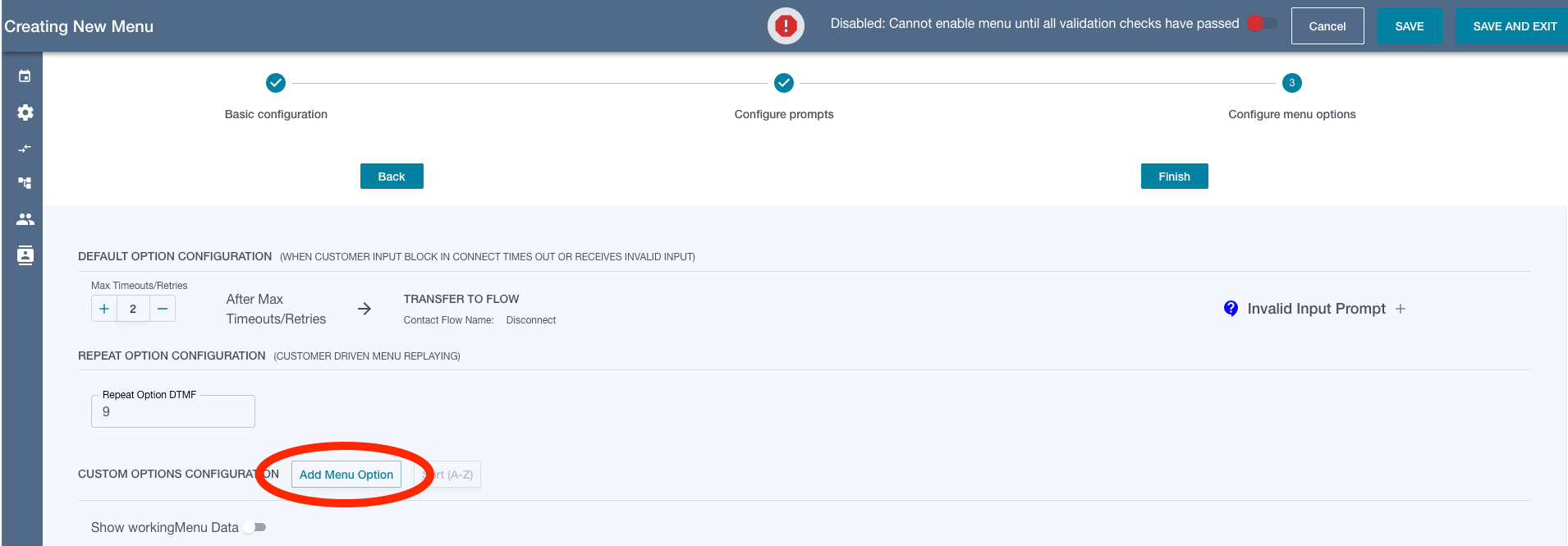
A blank menu option/action will be added to the list:

If you are using a Single or Multi DTMF, input the number you wish to serve as the option. You will see the red outline of the input disappear, but the arrow will still be red. Click the area that says “INVALID MENU ACTION” to configure the action for the option. (see the list of available menu actions)

After configuring a menu action, the arrow will no longer be red.

Updating the Language
For every menu option, you can choose to update the language of the call center if needed. Updating the language is not required, and if no language option is provided, the language will default to the current system language of the call center. Updating the language is particularly useful when the menu prompt is intended for language selection and you want to transfer to another menu after the language has been updated. If a language update is configured, the system language is changed in the flows, and if the next menu is configured for the updated language, prompts of the next menu will be handed to the flow in the updated language.

Since a menu prompt can only be retrieved from Flow Engine Menu Management using a single language code, you may want the text of the language menu prompt to be in two different languages. In those cases, you can configure SSML with language tags to read out wording for a language option in the targeted language. For example, an English/Spanish language menu might look like:
<speak>For English, Press 1. <lang xml:lang="es-US">Para español, presione 2</lang></speak>
When an English Polly voice reads out the words wrapped in the “lang” tag set for Spanish, the voice does not change, but the accent changes to something more reminiscent of Spanish and “2” is pronounced “dos”.
If the language tag solution is not adequate, there’s always the option to use pre-recored Connect prompts or S3 bucket prompts.
Language Menu Examples
Example 1:
If the call center handles multiple languages, but the agents are not bilingual, you could use a menu strategy similar to the following:
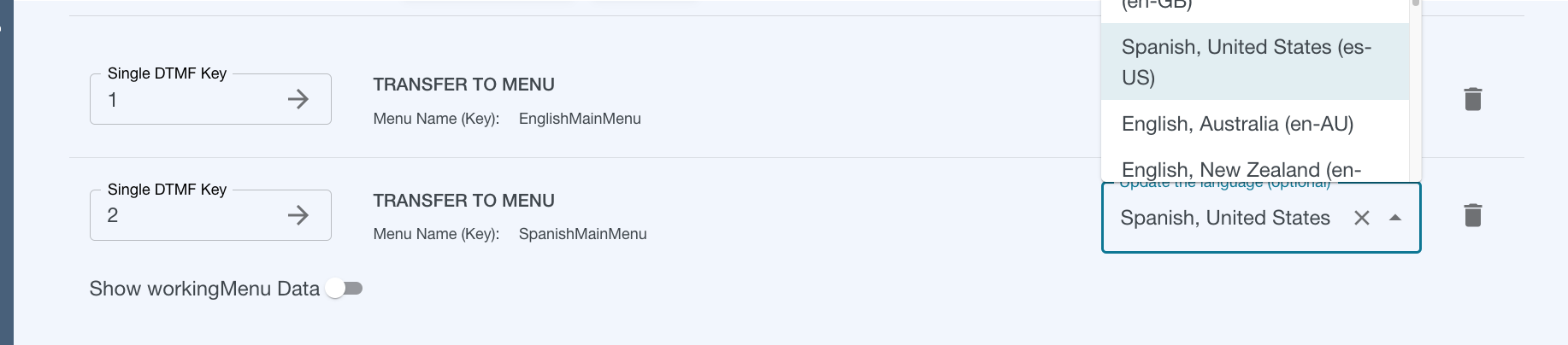
In the language menu screenshot above, option 2 points to SpanishMainMenu which has a single menu prompt in Spanish, and queue options, Billing_Spanish and CustomerCare_Spanish, staffed by Spanish-speaking agents. Option 1 (English), points to EnglishMainMenu which has an English prompt and English-speaker queues. (Note: You don’t need to update the language if it is already the default language of the call center).
Example 2:
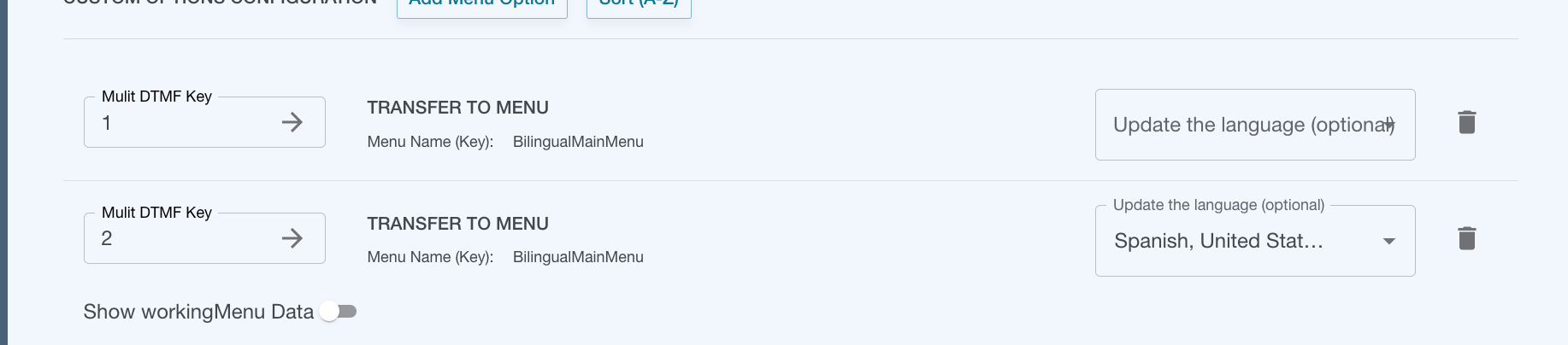
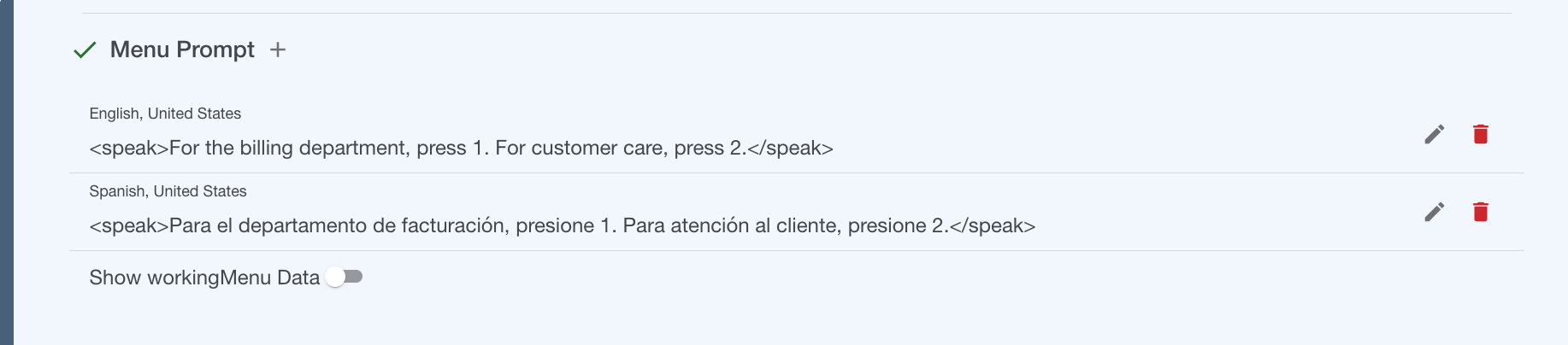
If agents of the call center are bilingual, both option 1 and option 2 of the language menu could point to a single main menu with 2 prompts - one for English and one for Spanish. In the example screenshot below, it’s BilingualMainMenu. When the caller gets to the main menu, the prompt will be returned to the flow in the language the caller chose in the previous language menu. However, the queues for the BilingualMainMenu are staffed by bi-lingual agents.
If you are using a Flow Engine Queue Treatments after updating the language in a menu, queue treatment prompts of the updated language will be pulled into the flow.