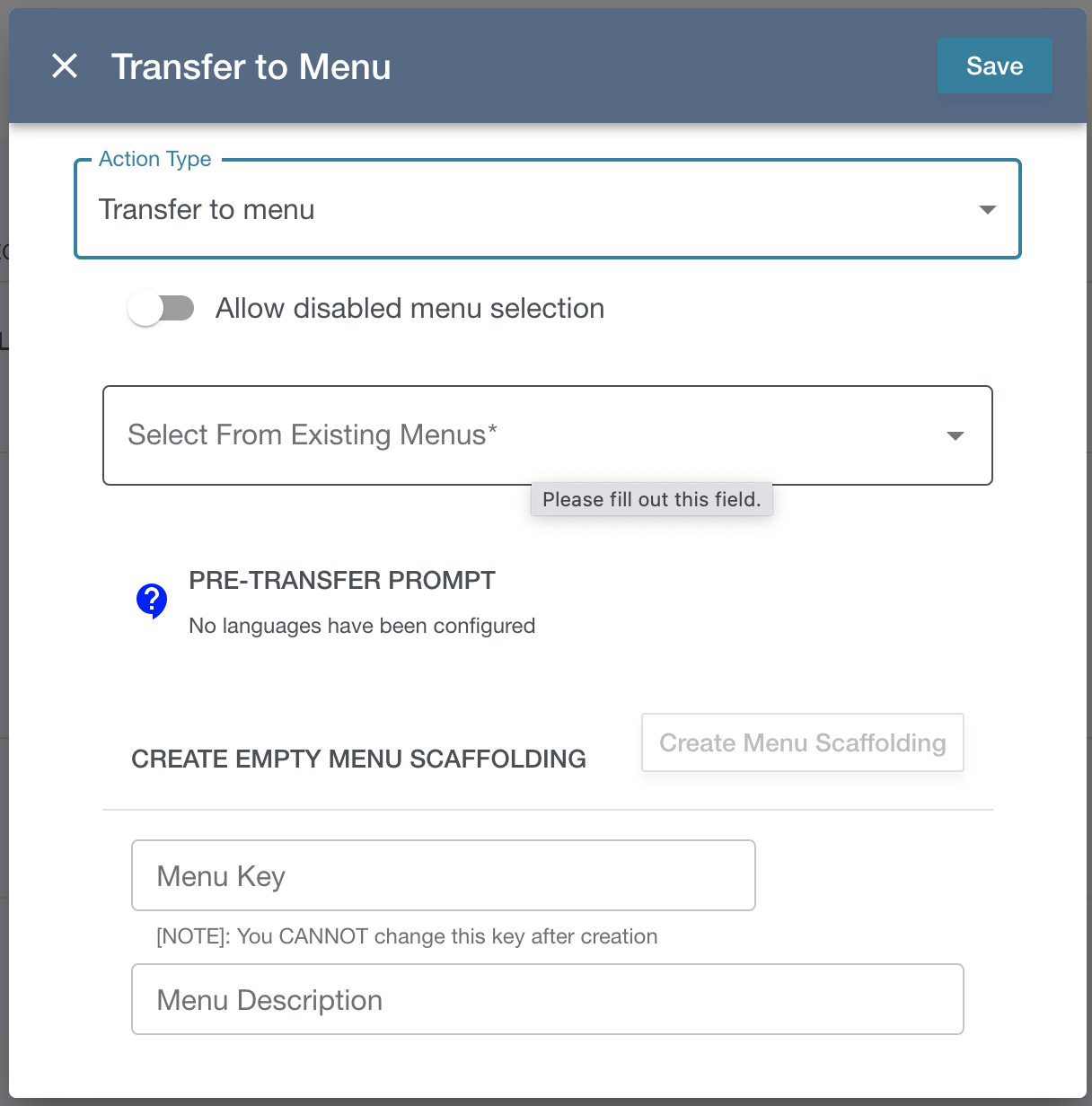
The beauty of the Menu Engine Flow is its recursive nature. It allows you to create ever-expanding phone trees by transferring to other menus you’ve configured in Menu Management.
Select the menu you want to transfer to for the desired option. By default, only validated and enabled menus will be shown in the dropdown. You can override this behavior by clicking the “Allow disabled menu selection” switch. After clicking the switch, you will see unvalidated and/or disabled menus. Be sure you are using validated menus only when going live.
If you are building your phone tree from the top down, there is an additional option to create menu scaffolding on the fly. Once the scaffolding is created, toggle “allow disabled menu selection”, choose the scaffolded menu from the dropdown, return to the Menu Management dashboard later to select and edit the scaffolded menu.
If you are creating a language menu, check out the examples in Adding an option with language update