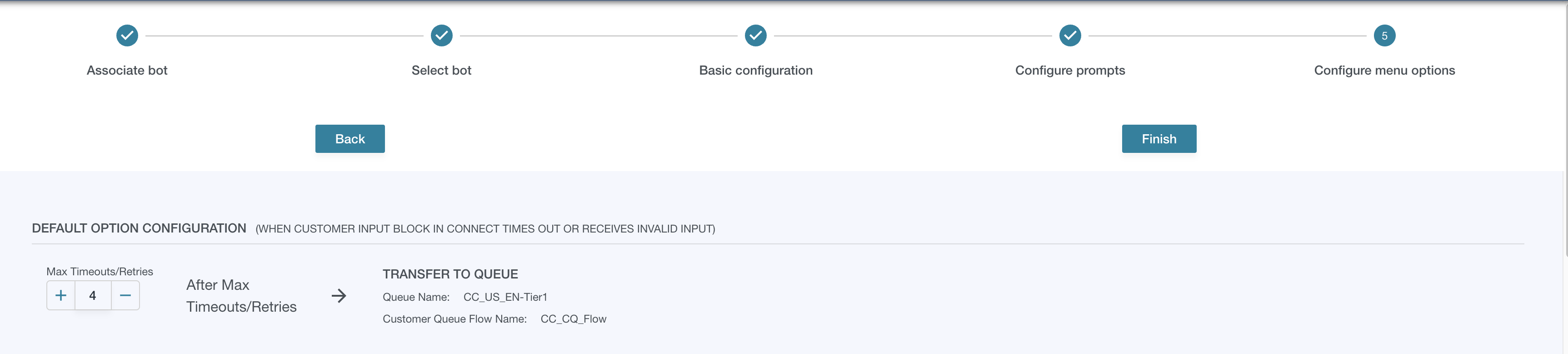
Flow Engine’s Menu Management has support for Lex menus. Before you can use a Lex bot in Menu Management, there are some prerequisites.
Prerequisites
-
You must have a Lex bot configured with Intents in the AWS Lex Console
-
You will need to create an alias for your Lex bot and associate a version of your bot to the alias before being able to move to the next step.
-
-
The Lex bot must be associated to your Connect instance.
-
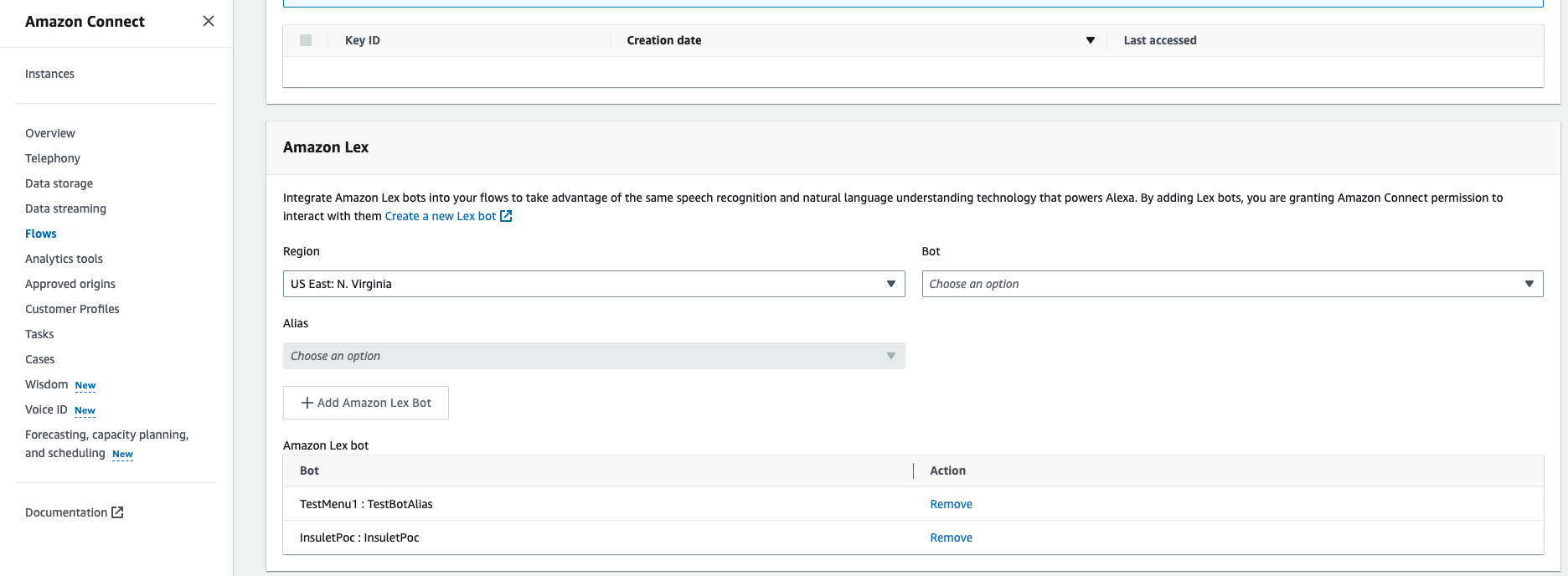
To associate a Lex bot to your Connect instance, in the AWS console for Connect, select your instance, navigate to the “Flows” tab on the left. You should see a section for Lex.
-
Select the region, the bot, and finally, the alias you created in Step 1. Click “Add Amazon Lex Bot”
-
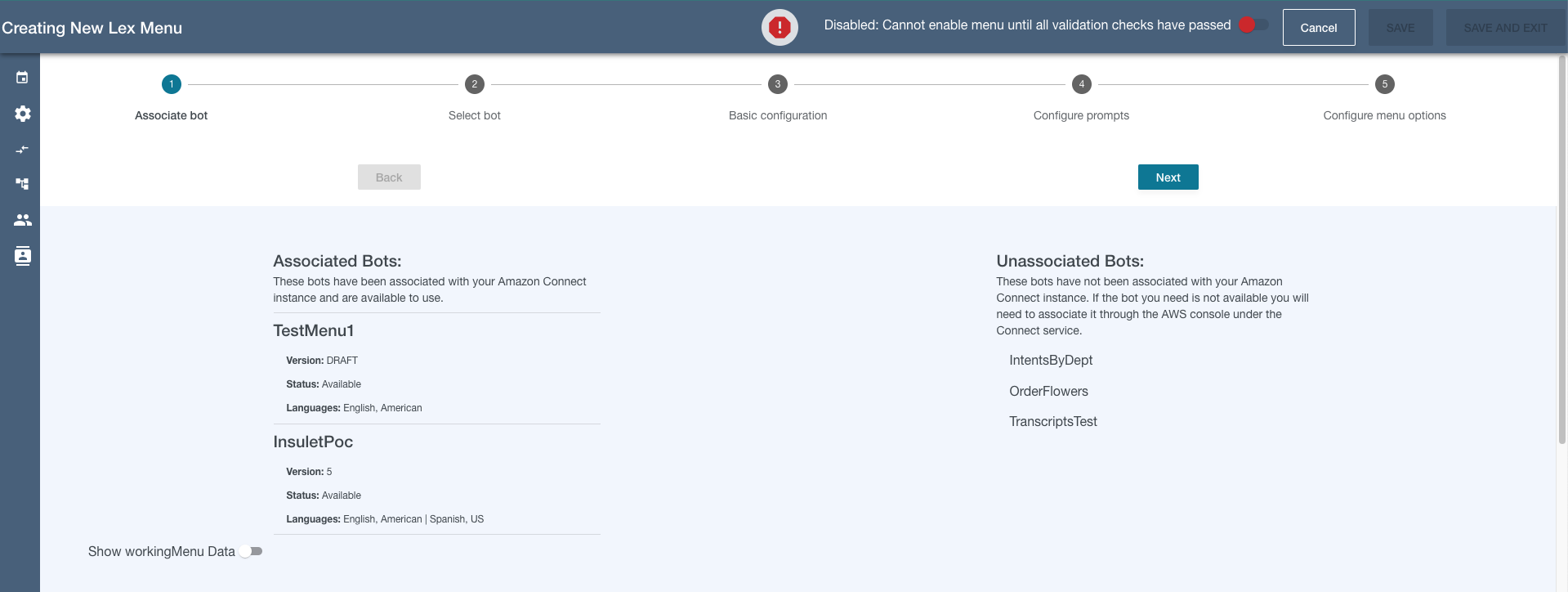
Once your Lex bot is added, it will show up in the Lex bot choices in OMP Flow Engine Menu Management when you are creating a Lex bot menu.
-
Creating a Lex Menu
-
From the Flow Engine Menu Management section, click the arrow to the right of the “Create New Menu” button and you will see a dropdown for Lex Menus.

-
When you open the Lex Menu Stepper, the first thing you will see are two lists - one for associated bots and one for unassociated bots. Associated Bots have been associated with your Connect instance and are available. Any unassociated bots, will need to be configured in the AWS console for Connect (See Prerequisites above).
-
Once you have determined your bot has been associated, click “Next” and you will be taken to the next step for selecting a bot from the ones available. Choose your desired bot from the dropdown, and a list of intents will render to the screen. If your bot is in multiple languages, select the radio button for the language you want. Lex menus can only be created in one language.
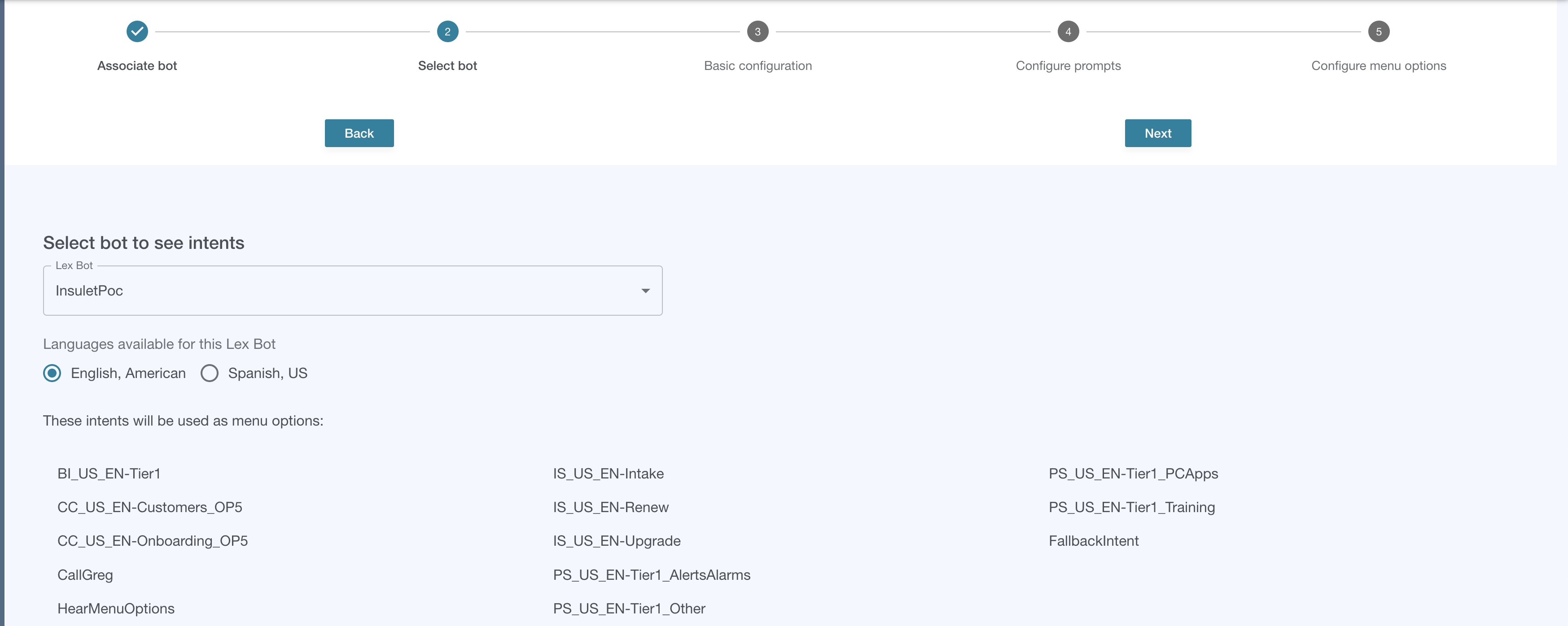
Just like other DTMF menus, there is a Basic Configuration and Configure Prompts step (stepper steps 3 & 4).
Similar to DTMF menus, Lex bot intents will be used as the Flow Engine Menu options, only instead of DTMF keys, you’ll see the intent name. For each intent, you can attach Menu Actions just as you would for DTMF menus (stepper step 5).
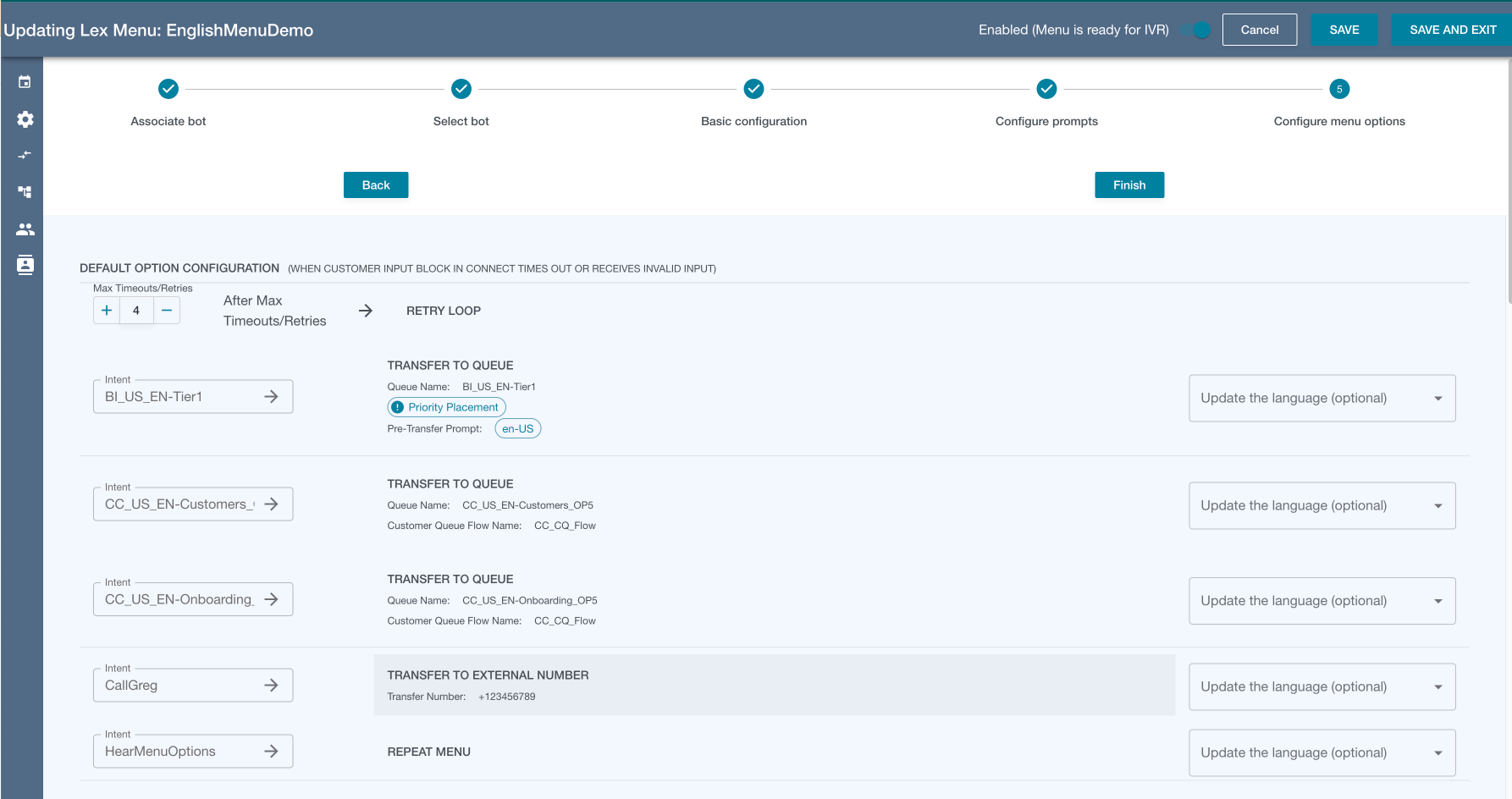
Pro Tip From the screenshot above you can see that the intent names are the same as the queues in the Transfer to Queue actions. When designing your Lex bot, if possible, it may be helpful to name your intents in such a way that it will be easy to tell which action to take. It is also helpful to have a useful queue and queue treatment naming schema. From this example the naming schema for queues is:
[LOB]_[Country]_[Language]_[Department]
and the queue treatments:
[LOB]_CQ_Flow.The last two intents, CallGreg and HearMenuOptions, have a Transfer to External number menu action and Repeat Menu action, respectively.
Fallback Intent
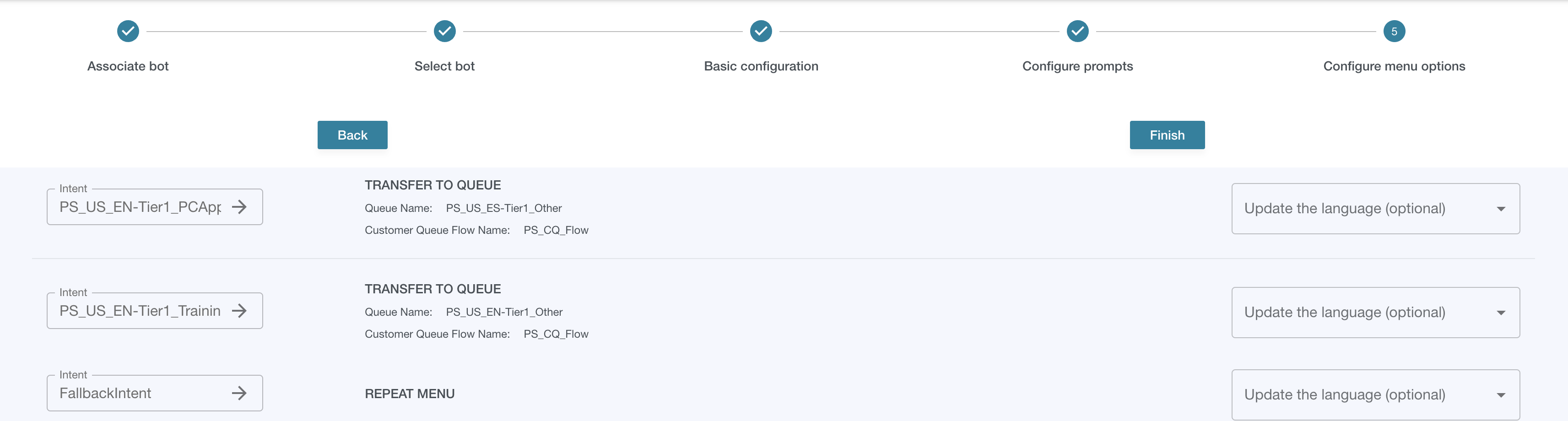
Every Lex bot has a “Fallback” intent if the caller’s utterances cannot be matched to an intent. In these cases it might be useful to set a Repeat Menu action for the fallback intent to allow the caller to try again. You can configure the Max/Retries and timeouts to a number of attempts you think is suitable before using a different action.