
Sign in
-
Go to the URL of your SSO provider. To obtain the URL please ask your administrator.
-
Sign in to your SSO account.
-
Select the Agent Desktop application on your dashboard (app icon may differ slightly).
-
The Agent desktop will load in a new tab. Amazon Connect will also load in a new tab. You will be automatically signed in to Amazon Connect and the tab will automatically close once you have been successfully signed in.
Allow pop-ups and use of microphone
When you sign into the Agent Desktop for the first time, make sure you allow pop-ups and enable the use of your microphone on your browser, otherwise the Agent Desktop will not function correctly.
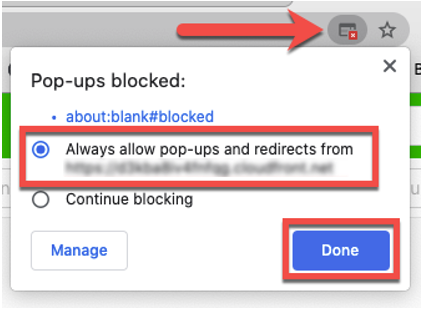
Allow pop-ups
Click on the pop ups icon on the right hand side of the address bar. Select the option Always allow pop-ups and redirects… and click on Done.
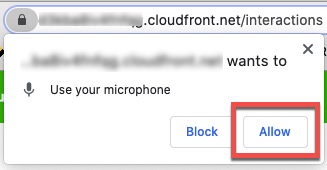
Allow use of your microphone
Click on Allow within the popup on the left hand side of the address bar.
Sign out
-
Click on account.
-
Click on sign out.
Auto sign out
Auto sign out will need to be enabled in your account before you can start using this feature. Speak to an administrator for assistance.
If you close your Agent Desktop browser tab, your status will automatically change to Offline after a configured amount of time has passed. This increases accuracy of agent reporting and also prevents agents from inadvertently being offered contacts after they have closed their Agent Desktop browser tab.
Note: The only scenario where this won’t occur is if you have a Task assigned to you when you close your browser tab. If a Task has been assigned to you and you close your browser you will remain in the On Contact state indefinitely.